
Sign in to Hivenet
Access your files and manage your storage account.
Store
Access your files and manage your storage account.
Compute
Launch instances and manage your compute resources.
Store and Compute still use separate accounts today. We’re working on a unified sign-in.
Just need to send a file?
Use Send directlyNew to Hivenet? Get Started
Get started with Hivenet
Choose what you want to use first.
Store
Back up photos and files across your devices.
Compute
Launch self-serve GPU compute for demanding work.
Store and Compute still use separate accounts today. We’re working on a unified account experience.
Need Hivenet for business?
Talk to salesNeed to send a file?
Open SendAlready have an account? Sign in
Remote desktop on Azure: complete guide to cloud-based Windows workstations
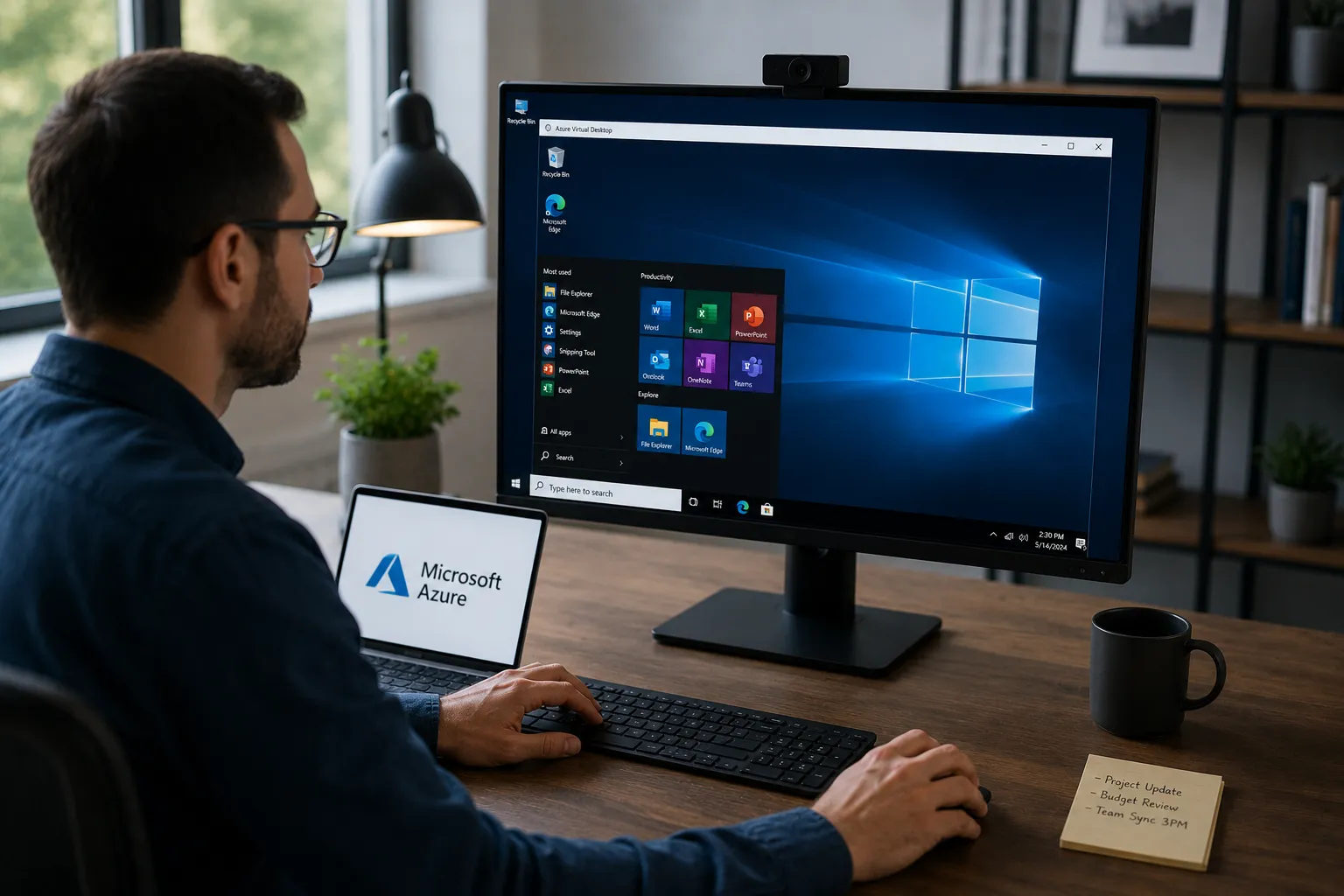
Remote desktop on Azure refers to accessing Windows desktops and apps hosted in Microsoft’s cloud infrastructure via the Remote Desktop Protocol (RDP). This approach enables users to run full Windows environments from virtually any device—laptops, tablets, smartphones, or browsers—without local hardware constraints.
This guide covers Azure Virtual Desktop (AVD), traditional Azure VM-based remote desktop configurations, and alternative solutions for specific workloads. The target audience includes IT administrators evaluating deployment options, remote workers needing reliable cloud desktops, and businesses calculating total cost of ownership for cloud desktop infrastructure. Understanding these options matters because the choice between managed desktop services and direct compute affects long-term costs, flexibility, and platform dependencies.
Direct answer: Remote desktop on Azure can use Azure Virtual Desktop (AVD) or Windows VMs accessed through RDP. AVD provides a Microsoft-managed connection service with pooled or personal desktops. Your team still manages session hosts, applications and access. Compare total costs for your actual workload rather than assuming one option always costs more.
Key outcomes from this guide:
- Understand the architectural differences between AVD and VM-based remote desktop
- Calculate realistic cost structures including hidden expenses
- Recognize ecosystem lock-in implications before committing
- Identify when alternative solutions like Compute with Hivenet better serve your needs
- Set up remote desktop access across different platforms and form factors
Understanding azure remote desktop solutions
Azure provides two primary paths to remote desktop functionality: Azure Virtual Desktop as a managed service, and traditional Windows VMs with RDP access configured manually. Each approach serves different operational models and budget constraints.
Azure virtual desktop (AVD) desktops and apps
Azure Virtual Desktop is Microsoft’s desktop and application virtualization service. Microsoft manages the connection infrastructure, including the broker and gateway. Customers or their partners remain responsible for session-host operating systems, applications, identities and deployment configuration.
The platform supports multi-session Windows 10/11 environments, meaning multiple users share a single VM while each experiences a full Windows desktop. This shared resource model improves cost efficiency for standard productivity workloads. AVD integrates natively with Microsoft 365, Azure Active Directory (now Entra ID), and Microsoft Teams optimizations for unified communication. Unified management through the Azure Portal allows IT teams to configure networking, add users, and deploy apps with ease.
Session hosts—the VMs actually running user sessions—can be configured as pooled (shared across users) or personal (dedicated to individual users). Administrators (admins) are responsible for creating host pools, adding session hosts, and managing user access. The remote desktop client connects through Azure’s geo-distributed gateway service, with Azure Traffic Manager directing users to the closest service instance based on their location.
Admins use commands in the Azure Portal or PowerShell when creating and configuring resources such as virtual networks, host pools, and application groups, ensuring proper setup and access control.
Traditional azure virtual machines
VM-based remote desktop involves creating a Windows VM in Azure, where an admin is responsible for configuring user accounts, security settings, and enabling RDP access through network security group rules. This approach provides full control over VM configuration, installed software, and user account management.
A dedicated VM can provide isolation and a customized software environment. AVD also offers personal desktops, so dedicated access is not exclusive to standalone VMs. Compare the required operating system, user access rights, session density and management work before choosing an approach.
Both approaches require operational planning. With AVD, you still manage session-host updates, scaling policies, backup and recovery. Microsoft’s management of the broker and gateway does not automatically configure or maintain those customer resources.
Azure virtual desktop vs vm-based remote desktop
The choice between AVD and standalone VMs affects cost predictability, performance characteristics, and long-term platform dependencies. With Azure Virtual Desktop, Microsoft manages complex infrastructure roles like the gateway, broker, and load balancer as a Service (PaaS) in Azure, reducing administrative overhead and simplifying deployment. Additionally, features designed to enhance the remote desktop experience—such as optimized connectivity and improved usability—can make AVD a more attractive option for many organizations. Understanding these differences prevents expensive mid-deployment corrections.
Cost considerations
AVD costs include session-host compute, disks and profile storage, network usage, and applicable licenses. Monitoring, identity services and backup can add costs. Front Door and Traffic Manager are used by the managed service; do not assume you must purchase separate instances of them for every AVD deployment.
For a 50-user estimate, define concurrent sessions, tested users per host, region, VM size and billable hours first. Add storage, networking, licensing and supporting services. Use the Azure Pricing Calculator and record the quote date and assumptions; a fixed per-user figure without those inputs is not a reliable budget.
Measure expected outbound traffic and apply the current bandwidth tariff for the deployment region and route. For illustration, at an assumed $0.12–0.15 per GB, 1–2 GB daily over 30 days would cost $3.60–9 before allowances. This is an arithmetic example, not a current Azure quote. Price GPU VMs by their full configuration and runtime.
For standalone VMs, multiply the selected VM’s current rate by its billable runtime, then add disks, network usage and any access, software or management services. Region, purchase model and operating-system licensing affect the result. A VM rate alone is not a complete per-user desktop cost.
Performance and limitations
GPU capacity depends on the VM size. For example, Azure NVadsA10 v5 sizes range from a fraction of an NVIDIA A10 to full-GPU configurations. Check allocated GPU memory, driver requirements and application performance for the exact size rather than treating all Azure GPUs as equally constrained.
Latency depends on the user’s connection, the session-host region and the selected transport path. Routing to a nearby service entry point does not move the desktop closer to the user. Test session responsiveness from each user location before deciding whether a multi-region deployment is needed.
Multi-session hosts share CPU, memory, storage and GPU capacity. Resource contention can affect responsiveness, so test realistic concurrent workloads and set appropriate session limits. Heavy or graphics workloads may need larger hosts, lower user density or personal desktops; multi-session is not categorically unsuitable.
RDP Multipath can switch between available transport paths when a connection degrades. It requires supported client versions and network conditions; support differs by platform. Check Microsoft’s current prerequisites and test the connection. Multipath cannot preserve a session connection when every network path is unavailable.
Ecosystem lock-in
AVD integrates deeply with Azure Active Directory, Microsoft Intune, Azure Monitor, and Azure Files. This integration creates operational efficiencies for organizations already committed to Microsoft’s cloud ecosystem.
The dependency cuts both ways. Once user provisioning, compliance policies, storage architecture, and monitoring dashboards are built around Azure services, migrating to alternative infrastructure requires significant rework. Identity synchronization configurations, backup policies, and automation scripts become platform-specific assets.
Organizations should recognize this path dependency before committing. The question isn’t whether Azure integration is valuable—it often is—but whether the switching costs align with long-term strategic flexibility requirements.
Setting up remote desktop client on Azure
Implementation approaches differ significantly between AVD’s managed model and VM-based direct configuration. Both require careful attention to networking, security, and user access controls. Creating resources and configuring settings for remote desktop on Azure can be accomplished through the Azure Portal or by using command-line tools, where specific commands help manage the setup process, such as creating virtual networks, host pools, user roles, and application groups.
For AVD, use Windows App on a supported device or its supported web experience. Sign in with the organizational account assigned access to the desktop or application; a personal Microsoft account is not a substitute.
Azure virtual desktop setup
- Admin creates host pool and configures session hosts: In the Azure portal, an administrator is responsible for creating a host pool by specifying pooled or personal configuration, then provisioning session host VMs with appropriate sizing for your user density and workload requirements.
- Administrator creates application groups and assigns users: Register application groups with a workspace and assign the appropriate users or groups. Users sign in to Windows App with their organizational account to find the resources assigned to them.
- Configure remote desktop clients across devices: Use Windows App for AVD on supported Windows, macOS, iOS/iPadOS or Android devices, or use a supported desktop browser. Confirm platform requirements and needed features before rollout.
- Establish network connectivity and security policies: Configure virtual network settings, enable device redirection policies through Intune, and set conditional access rules based on device compliance, location, or user risk level. Microsoft Intune can now restrict access based on OS version, app version, and threat detection status.
VM-based remote desktop setup
- Deploy Windows VM with appropriate sizing: In the Azure portal, create a Windows VM selecting the size that matches workload requirements. Consider D-series for general productivity, NV-series for GPU workloads.
- Configure RDP access and network security groups: Prefer Azure Bastion or an approved private access path instead of exposing port 3389 to the public internet. With Bastion, the target VM does not need a public IP address. Restrict network rules to the chosen access path.
- Install required applications and configure user access: An administrator (admin) should connect via RDP to install software, create local user accounts or join Azure AD, and configure application settings. The admin is responsible for setting up storage devices and file shares as needed.
- Set up backup and monitoring solutions: Configure Azure Backup for VM snapshots, enable Azure Monitor for performance alerting, and establish recovery procedures for disaster scenarios.
Cost components to compare
| Cost factor | Azure AVD | Standalone Azure Windows VMs | Compute with Hivenet (instances) |
|---|---|---|---|
| Base compute | Session-host size, concurrency and runtime | Selected VM sizes and runtime | Current price for the selected configuration |
| Storage | OS disks, profiles and any data storage | OS disks and any data storage | Check included capacity and retention terms |
| Networking | Applicable transfer and networking charges | Applicable transfer and access-service charges | Confirm networking terms for the deployment |
| GPU option | GPU VM size; not a universal add-on fee | GPU VM size; not a universal add-on fee | Verify GPU model and allocated memory |
| Licensing | Eligible user access and application licenses | Windows and applicable remote-access/app rights | Check OS, application and remote-access licenses |
| Other costs to check | Profiles, monitoring, backup and identity services | Backup, monitoring, access services and administration | Workload setup, software and data protection |
| Billing model | Azure usage charges plus applicable licenses | Azure usage charges plus applicable licenses | Per-second Compute usage charged to credits |
Common challenges and solutions
Tip: For AVD, use a supported version of Windows App and verify that it supports the display and peripheral features your users need.
Azure remote desktop deployments surface predictable pain points. Addressing these proactively prevents budget overruns and performance disappointments. Solutions that enhance the remote desktop experience, such as optimizing network settings and enabling advanced features, can significantly improve user satisfaction.
Unexpected cost escalation
Azure costs can include compute hours, disks, cross-region data transfer, profile storage and optional management services. Compare actual usage with the assumptions in your estimate rather than relying on an unsupported percentage for typical overruns.
Solution: Set budget alerts, review consumption and right-size resources. Configure scaling plans around working hours and demand, and assess reservations or savings plans against expected usage. Compare alternatives using the same workload and operating requirements; billing granularity alone does not establish a lower total cost.
GPU performance limitations
Some Azure GPU sizes allocate a fraction of a GPU; others provide one or more full GPUs. If an application exceeds the selected VM’s GPU-memory allocation, evaluate a larger or different size and test it. A limit on one configuration does not establish a platform-wide limit.
Solution: Compare the GPU model, memory allocation, drivers and measured application performance. For Hivenet’s RTX 5090 option, check the current configuration and capacity. Do not assume a compute instance includes a licensed Windows desktop or a configured remote-display service.
Complex licensing and management
Remote Desktop Services licensing requirements, Azure AD synchronization, Intune policy configuration, and profile management create ongoing administrative overhead for admins and administrators. This includes tasks such as user management, policy configuration, and profile management. Organizations without dedicated IT resources or an administrator may struggle to maintain optimized deployments.
Solution: Budget for administration, standardize images and test update and recovery procedures. Configure scaling where appropriate. Compute-only infrastructure changes which services you operate; it does not remove software licensing, security or maintenance responsibilities.
Alternatives for compute workloads and remote desktops
Compare a managed desktop service with another managed desktop service, and raw compute with infrastructure you are prepared to configure. If you need a ready-to-use Windows workstation, confirm the operating system, access licenses, remote-display support and management responsibilities before treating a compute provider as an alternative.
For more information, visit the Compute with Hivenet website.
When to consider alternatives
- GPU-intensive workloads: 3D rendering, video production, ML development requiring consistent high performance
- Budget planning: Compare total costs for a defined workload, including required software and operating time
- Platform independence: Organizations wanting to avoid long-term vendor lock-in
- Operational capacity: Confirm your team can install, secure and maintain any desktop software the service does not manage
What to check with Compute with Hivenet
Compute with Hivenet provides GPU and CPU instances. Its documented VM and container workflows are not a promise of a preconfigured Windows desktop. Check the following before choosing it for interactive remote work:
- Current GPU pricing: Check the selected instance’s rate and available capacity before estimating the workload cost
- GPU allocation: Verify the configuration’s memory, driver support and suitability for your application
- Instance lifecycle: Check restart capacity and stopped-instance retention; keep backups outside the instance
- Billing: Compute usage is charged per second while running; confirm any separate software and service costs
- Support scope: Confirm whether help with your chosen desktop software is included
For a graphical desktop, verify that the chosen instance supports the required operating system, display server, remote-access software and licenses. Hivenet’s documented server workflows do not establish that a Windows RDP workstation is supplied or supported by default.
Conclusion and next steps
Remote desktop on Azure provides capable cloud desktop infrastructure when Microsoft ecosystem integration aligns with organizational needs. AVD reduces operational overhead for IT teams committed to Azure services, while VM-based approaches offer flexibility at higher management cost.
Compare total cost, application compatibility, session responsiveness and who will operate the environment. GPU requirements alone do not determine whether AVD, a standalone VM or another provider is the best fit.
Immediate actions:
- Calculate true costs including compute, storage, egress, licensing, and management overhead for your user count and workload types
- Assess workload requirements honestly—standard productivity versus GPU-intensive applications need different solutions
- Evaluate ecosystem preferences: do Azure AD integration and Intune management add value or complexity for your organization?
Related considerations: Data sovereignty requirements may constrain regional deployment options. Compliance frameworks (GDPR, HIPAA) require careful session host and storage placement. Long-term scalability planning should account for both user growth and evolving workload demands.
If your task needs rented GPU or CPU capacity, evaluate Compute with Hivenet against the job’s requirements. Confirm desktop software support and licensing separately before using it as a replacement for a managed Windows desktop service.
To learn more, search for additional resources or visit the official Microsoft documentation for comprehensive guidance on remote desktop on Azure.
Frequently asked questions (FAQ) about remote desktop on Azure
What is remote desktop on Azure?
Remote Desktop on Azure allows users to access Windows desktops and applications hosted in Microsoft’s cloud infrastructure using Remote Desktop Protocol (RDP). This enables secure, flexible remote work from various devices without needing powerful local hardware.
What is the difference between Azure Virtual Desktop and VM-based remote desktop?
AVD supplies a managed connection service and supports pooled or personal desktops. Standalone VMs require a separately configured access path. Both need administration of operating systems, applications and user permissions. Costs depend on the selected configuration, usage and licenses.
How do I connect to Azure Virtual Desktop?
Use Windows App on a supported platform or its supported web experience. Sign in with the organizational account assigned AVD resources, then choose the desktop or app provided by your administrator. Follow your organization’s sign-in and access policies.
What is the Windows App, and how does it affect Remote Desktop?
Windows App is Microsoft’s recommended client for AVD. The older Microsoft Store Remote Desktop app is no longer available for download. The Windows MSI Remote Desktop client reached end of support for Azure public cloud on March 27, 2026; Microsoft documents separate timelines for other environments. These changes do not mean the built-in Remote Desktop Connection application (MSTSC) has been retired.
Can I use multiple monitors and dynamic display resolutions with Azure Virtual Desktop?
Yes, Azure Virtual Desktop supports multiple monitor configurations and dynamic display resolutions, enhancing the remote desktop experience across various devices.
How secure is remote desktop access on Azure?
Security depends on configuration. For AVD, apply appropriate identity, access, session-host and redirection controls. For direct VM access, Azure Bastion can avoid a public IP on the target VM. Review and test the controls required for your deployment rather than treating service access as a security guarantee.
What are the cost considerations for using Azure Virtual Desktop?
Costs include compute resources, storage, networking, licensing, and data egress charges. Azure’s pay-as-you-go model means you pay only for the compute capacity you use. Autoscaling features can optimize costs by adjusting capacity based on demand.
How do I set up Remote Desktop for Azure virtual machines?
Deploy a suitable Windows VM and configure an approved access path, such as Azure Bastion, with restricted network rules and authorized user access. A public IP and publicly exposed RDP port are not required when connecting through Bastion.
What features does Azure Virtual Desktop offer?
AVD provides many features such as multi-session Windows desktops, Microsoft 365 optimization, unified management via the Azure portal, autoscaling, support for webcams and printers, and integration with Azure Active Directory.
How do I manage user access and applications in Azure Virtual Desktop?
Administrators configure host pools, session hosts, application groups, workspaces and user assignments. Users then sign in with the assigned organizational account in Windows App. Resource visibility depends on the administrator’s assignments and access policies.
What happens to corporate data when using remote desktop on Azure?
Applications run on the session host, but that does not guarantee data never reaches a local device. Clipboard, drive and printer redirection can transfer information when permitted. Configure these policies and endpoint controls for the sensitivity of the data.
Can I use Remote Desktop on Azure through a web browser?
Yes, Azure Virtual Desktop supports HTML5 web browser access, allowing users to connect without installing any software.
What is Azure Bastion, and how does it help?
Azure Bastion provides secure RDP and SSH connectivity to Azure VMs directly through the Azure portal without exposing public IPs, improving security posture.
How do I sign in to Remote Desktop on Azure?
For AVD, sign in to Windows App with the organizational account assigned access to your resources. Standalone VM sign-in follows the authentication method configured for that VM and its access path.
Are there any important tips for optimizing remote desktop performance on Azure?
Size hosts for measured workloads, configure scaling plans where appropriate, and test latency from users’ locations. RDP Multipath needs a supported client and network setup. Enable printer or webcam redirection only when needed and allowed by your security policy.
Where can I find more articles and resources about Remote Desktop on Azure?
You can find a list of articles and resources on the official Microsoft documentation. Use the search function to quickly locate guides, troubleshooting steps, and best practices. Visiting Microsoft Learn and Azure blogs is also recommended for the latest content and updates.
Does Azure Virtual Desktop support SaaS applications?
Yes, Azure Virtual Desktop can deliver SaaS applications alongside full desktops, providing flexible access to cloud-hosted software.
How does Azure Virtual Desktop help admins?
Admins benefit from unified management, simplified user assignments, resource scaling, and integrated security policies, reducing operational complexity.
What should I check before deploying Remote Desktop on Azure?
Check network configurations, licensing requirements, user access roles, security policies, and ensure your Azure account is properly set up for resource management.
Can I print documents from Azure Virtual Desktop sessions?
Yes, printer redirection is supported, allowing users to print from their remote desktop sessions to local or network printers.
This FAQ addresses common questions and provides important information to help users and administrators optimize their experience with remote desktop on Azure. For more information, visit Microsoft Learn or the Azure blog.
Your next workload belongs on Hivenet.
Pick one AI, compute, or storage workload and see the difference for yourself. Spin it up in minutes, or let our team map your fastest path to production.