

Sign in to Hivenet
Access your files and manage your storage account.
Store
Access your files and manage your storage account.
Compute
Launch instances and manage your compute resources.
Store and Compute still use separate accounts today. We’re working on a unified sign-in.
Just need to send a file?
Use Send directlyNew to Hivenet? Get Started
Get started with Hivenet
Choose what you want to use first.
Store
Back up photos and files across your devices.
Compute
Launch self-serve GPU compute for demanding work.
Store and Compute still use separate accounts today. We’re working on a unified account experience.
Need Hivenet for business?
Talk to salesNeed to send a file?
Open SendAlready have an account? Sign in
Compare two PDF proofs before releasing a corrected print insert
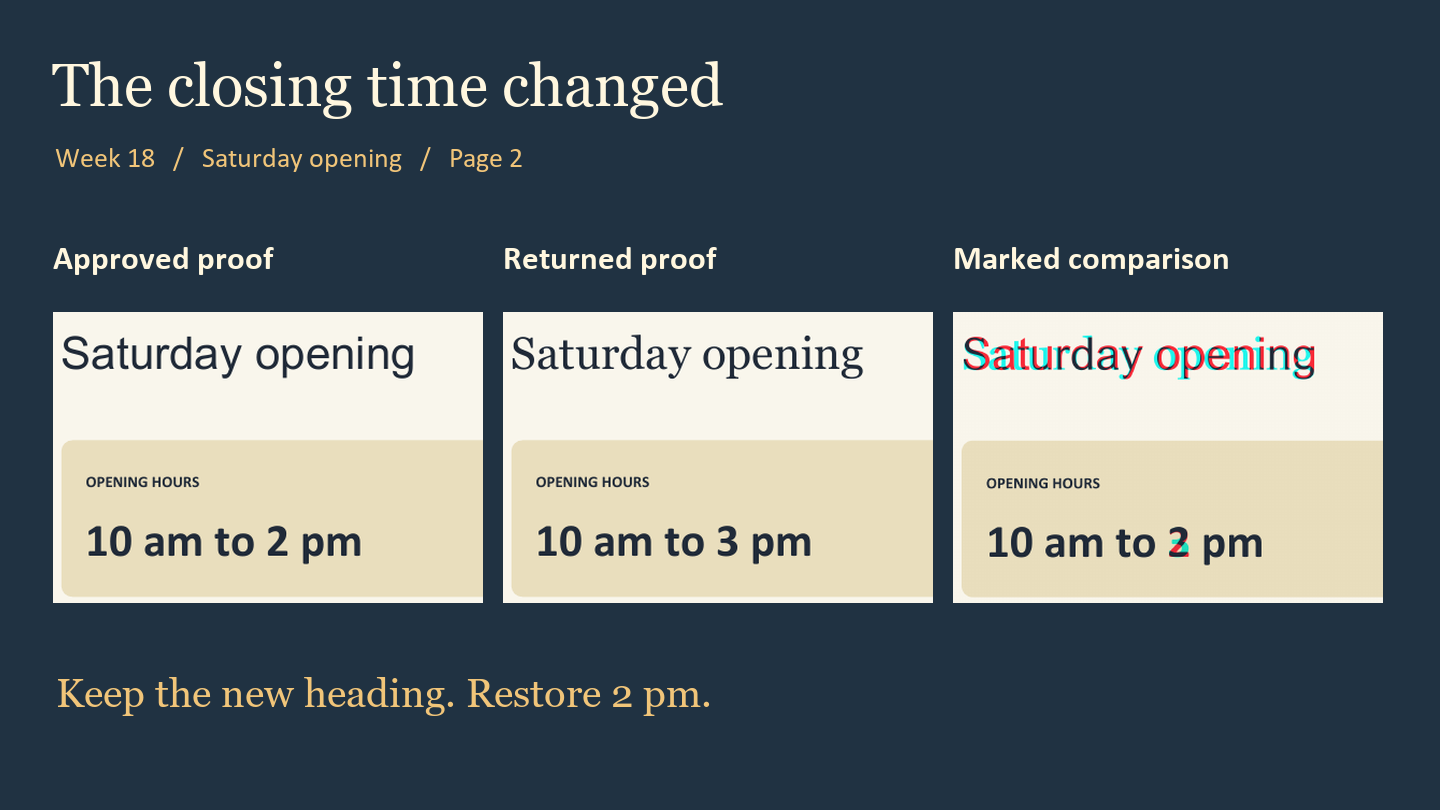
To compare two PDF files for differences before a print handoff, put the approved proof first and the supplier’s returned proof second. Generate a marked comparison, then read each highlighted change in both originals against the change note. In our Saturday bulletin, the supplier fixed the heading font as requested. The same page also moved closing time from 2 pm to 3 pm. The heading can stay. The insert needs to go back.
Start with the approved copy and the change note
Download the two proofs, marked comparison, change note and proof log. The sample contains two pages per proof. Page one is the contents page. Page two carries the “Saturday opening” visitor notice. The approved PDF is the reference for wording and layout. Its heading still needs the font correction before the job goes to print.
The note authorizes one change on page two: replace the Helvetica heading with embedded Georgia. The printer accepts embedded font subsets. The approved hours are “10 am to 2 pm,” and the instruction below reads “Please use the south entrance.” Keep the note beside the proofs so you can distinguish a requested change from a new mistake.
Check the edition, page count, page labels and trim size before comparing the files. Our two proofs have the same page order and measure 540 by 660 PDF points. If a supplier inserts a page near the front, page three of one file may correspond to page four of the other. Match the content before interpreting a page full of differences.
Make a visual comparison of the two PDFs
The sample includes bulletin-marked.pdf so you can open the result directly. To reproduce it locally, unpack the two original PDFs into a working folder, make diff-pdf available on your command path, and run the following from that folder. Choose a fresh output name if you need to keep an earlier comparison.
diff-pdf --output-diff=review-copy.pdf bulletin-approved.pdf bulletin-returned.pdfWe used diff-pdf 0.5.3 on Windows. It rendered both proofs for comparison and produced a PDF with differences shown in color. The command returned 1 for this pair, which is the expected result when the files differ. Open the marked PDF and confirm that it covers the pages you intended to compare. An unreadable input or a missing output needs investigation before you make a release decision. diff-pdf usage and releases.
Read page two with both originals open
Contents page. Page one had no visible changes in the marked comparison. We also rendered the first page of each original at the same size and found their pixels matched. Move on to the visitor notice.
Heading. In the marked PDF, colored outlines run across “Saturday opening.” Open page two in each original. The words are identical, the new Georgia heading fits on one line, and there is space above the hours panel. A font inspection of the returned page confirmed an embedded Georgia subset. Accept this change under the approved change note. For that separate resource check, follow the embedded-fonts guide.
Opening hours. The smaller colored mark falls on a single digit. The overlap makes it hard to read in the marked file, so read the hours straight from the originals. The approved page says “10 am to 2 pm.” The returned page says “10 am to 3 pm.” Nothing in the change note authorizes an extra hour. Hold page two even though its new heading passed.
Entrance instruction. Both proofs say “Please use the south entrance.” The sentence stays on one line below the hours panel. Record it as checked so the supplier knows which wording to retain.
Send one correction the supplier can act on
Please keep the new Georgia heading on page two. In the Opening hours panel, restore “10 am to 2 pm” in place of “10 am to 3 pm.” Keep “Please use the south entrance.” Send a fresh PDF so we can clear the insert for print.
The proof log names the two compared files, page, location, approved content, returned content, decision and action. It gives the heading and the hours separate rows. That keeps the accepted font change out of the correction request and gives the next editor a record of why the insert was held.
When the next export arrives, compare it with the held version to see what the supplier changed. Then check the whole insert against the approved proof and the change note. On page two, confirm the closing time is back to 2 pm, the Georgia heading is still embedded and the south entrance instruction is intact. Check the page order. If you find another unapproved change, keep the insert on hold and tell the supplier where it is. Once the corrections and the printer’s remaining checks are signed off, record the exact filename in the proof log and send that version to the printer.
When several editions share the same cutoff
A workstation is enough for a two-page insert. If several editions arrive together, time the rendering and comparison of a representative batch at your normal settings. Record the page count and size, then allow time for an editor to read the marks and for suppliers to return corrections. If the machine work regularly consumes the time reserved for review, use the measured queue and remaining window with the CPU VM buying guide.
We inspected both pages of both sample proofs and the marked comparison locally. The sample ends at the hold decision. A corrected third export, a physical press proof and cloud batch timing were outside this check.
Your next workload belongs on Hivenet.
Pick one AI, compute, or storage workload and see the difference for yourself. Spin it up in minutes, or let our team map your fastest path to production.

