Sign in to Hivenet
Access your files and manage your storage account.
Store
Access your files and manage your storage account.
Compute
Launch instances and manage your compute resources.
Store and Compute still use separate accounts today. We’re working on a unified sign-in.
Just need to send a file?
Use Send directlyNew to Hivenet? Get Started
Get started with Hivenet
Choose what you want to use first.
Store
Back up photos and files across your devices.
Compute
Launch self-serve GPU compute for demanding work.
Store and Compute still use separate accounts today. We’re working on a unified account experience.
Need Hivenet for business?
Talk to salesNeed to send a file?
Open SendAlready have an account? Sign in
Ultimate Guide to External Hard Drive Cloud Backup: Secure Your Data Now!
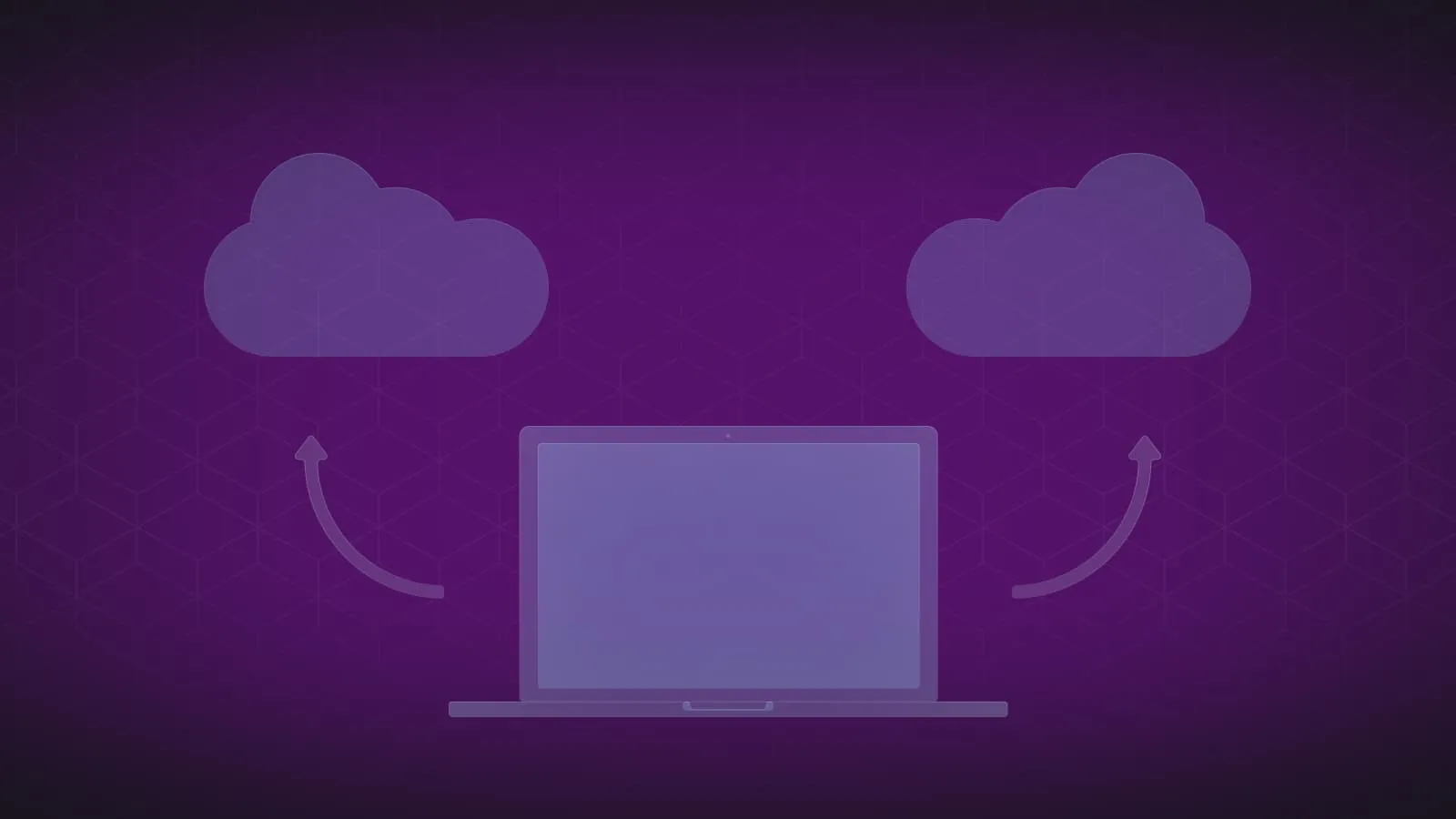
Backing up an external drive to the cloud starts with choosing a service that supports your drive and recovery needs. This guide distinguishes manually uploaded copies from scheduled backup, explains what to check before relying on a service, and covers restore tests.
Key Takeaways
- Hivenet, Google Drive, Dropbox and OneDrive offer different storage and backup workflows. File storage or synchronization does not establish automatic external-drive backup support.
- The initial backup process is critical and involves careful selection of files to back up, ensuring the successful transfer of data to the cloud, and utilizing unique methods offered by each cloud storage provider for selection and transfer.
- Maintaining a backup means checking completed updates, retention and deletion behavior, then testing restoration. Encryption, selective sync and version history have different purposes and vary by service.
Exploring the Best Cloud Backup for External Hard Drives

The following services can be considered for storing file copies, but they do not offer identical backup workflows. Check external-drive compatibility, available capacity, retention and restore behavior before selecting one:
- Hivenet
- Google Drive
- Dropbox
- OneDrive
Hivenet- A Step Towards Sustainable Cloud Storage
Hivenet describes its sustainability approach in terms of infrastructure, product scope and measurement assumptions. Store with Hivenet is an encrypted, distributed-storage platform for everyday files. A distributed design alone does not prove a lower footprint for every backup workload.
The current Store product page lists 3 GB free. Check the available storage plans for paid capacity, billing period and total cost. This guide does not claim a current 8 TB maximum or that buying a plan guarantees recovery.
Google Drive - The Versatile Storage Giant
Google accounts include 15 GB shared across Drive, Gmail and Photos. File storage in Drive is not a full-drive image backup; check the supported upload or desktop workflow and test a downloaded copy.
Dropbox - Sync Seamlessly Across Devices
Dropbox offers file sync and a separate Dropbox Backup workflow. Check your plan’s storage quota, supported external-drive format and recovery period rather than assuming every plan includes the same backup capacity.
Dropbox Backup documentation describes external-drive backup separately from file sync. Check the supported workflow directly; this guide does not establish a Dropbox-to-Amazon-S3 backup integration.
OneDrive - Integrated Windows Cloud Solution
OneDrive by Microsoft provides Windows users with an integrated solution. Here are some key features of OneDrive:
- 5GB of free storage
- Support for file uploads up to 250GB
- Advanced security measures
- Remote access
- File sharing capabilities
OneDrive can store uploaded file copies, but its folder-backup feature is not a general removable-drive backup tool. Microsoft states that removable USB drives are not supported as a OneDrive storage location and that Folder Protection cannot be set up on external memory.
Navigating the Initial Backup Process

The journey to secure your backup data begins with the initial backup process. This process involves selecting the files you want to back up and ensuring their successful transfer to the cloud.
Consider the aspects of selecting files for backup and carrying out a successful data transfer.
Selecting Files for Backup
Choose the files and folders you need to recover, then confirm that your selected tool includes them. Manual upload, desktop sync and Dropbox Backup are different workflows; compare cloud sync and cloud backup before relying on one. Test a small set of files first.
Ensuring Successful Data Transfer
After selecting your files, the next step is to ensure a successful data transfer. This process involves monitoring the data transfer and troubleshooting any issues that may arise. From installing the designated cloud storage client to meticulously adhering to data migration procedures, these steps ensure a seamless transfer of your data to the cloud.
Moreover, it’s always wise to refer to the troubleshooting guides provided by your cloud storage provider in case of a failed data transfer.
How to Maintain Your Cloud Backup Over Time

Maintaining your cloud backup over time is essential to ensure that your data stays secure and up-to-date. Regular backup updates and easy access to restore your data when needed are essential aspects of this process.
We will now examine these aspects in further detail.
Regular Backup Updates
Set a backup frequency that matches how much recent work you could afford to lose. Store’s camera-roll photo backup does not establish scheduled external-drive backup. For a manual upload, later edits need a separate update; for an automated tool, check compatibility, completed jobs and errors.
Accessing and Restoring Backups
Before depending on a stored copy, download it to a separate location and open it. Check how the selected service handles deleted files and older versions, including retention limits; a restore feature is useful only if it covers the version you need.
Always remember that having an easy way to restore your data is as important as having a backup in the first place.
Advanced Features of Cloud Backup Services

Check encryption, access controls, retention and restore options for the specific product and plan. Selective sync controls local file availability; it is not a substitute for an independent backup.
Encryption and Security Protocols
Store encrypts file content and offers an optional encryption passphrase separate from account sign-in. Compare each provider’s key handling, account security and recovery rules. Encryption does not guarantee successful uploads, prevent every deletion or replace a restore test.
Selective Sync and File Versioning
Where supported, selective sync lets you choose which folders are kept on a device. Check it separately from version history and backup retention, and confirm that online-only files have been downloaded before counting them as local copies.
On the other hand, file versioning keeps multiple versions of a file, allowing users to retrieve previous versions in case of accidental deletion or data corruption.
Tailoring Cloud Storage to Different User Needs
Cloud storage solutions can be customized to cater to the diverse needs of different users. Whether it’s for personal use, small businesses, or large enterprises, there’s a cloud storage solution that fits.
Personal Use: Balancing Cost and Convenience
Personal users should prioritize finding a balance between cost and convenience when it comes to mobile devices. Cloud storage solutions like Google Drive and Dropbox offer affordable plans with a user-friendly interface, making them ideal for personal use. However, local storage options can also be considered for those who prefer to keep their data physically close.
Moreover, having a convenient way to access and manage all the data through a reliable internet connection is as important as the cost of the service and the efficiency of the operating system.
Small Business: Collaborative Features and Scalability
Cloud storage solutions that foster growth and teamwork are ideal for small businesses. Cloud storage services like Dropbox and OneDrive offer scalable solutions and collaborative features, making them ideal for small businesses looking to grow.
Enterprise Solutions: Advanced Control and Compliance
For enterprise use, review the exact product, contract, administrative controls and recovery requirements. The following names cover different consumer and business offerings:
- Hivenet
- Google Drive
- Dropbox
- OneDrive
should be evaluated at the product and plan level. A consumer storage account does not establish enterprise retention, regulatory compliance or a service-level commitment.
Smart Practices to Avoid Common Backup Pitfalls
Adhering to smart practices is crucial for securing your data and ensuring smooth backups. This includes verifying backup integrity and managing storage space effectively.
Verifying Backup Integrity
Test backups by restoring files to a separate location and opening them. Checksums can help compare copies, but a matching checksum does not prove that you backed up the correct version or that every required file was included.
Managing Space for Optimal Performance
Efficient management of storage space is essential for optimizing performance and preventing disruptions during the backup process. From removing unnecessary files to managing duplicate files, these steps ensure that your cloud backup runs smoothly and efficiently.
Back up your files
Cloud backup is an effective way to secure your data, especially for external hard drives. With a variety of cloud backup solutions available, it’s important to choose one that fits your needs, whether for personal use, small business, or enterprise. Regularly updating your backups, managing storage space effectively, and verifying backup integrity are key to maintaining a secure and efficient cloud backup system.
Frequently Asked Questions
How do I backup my external hard drive to the cloud?
Connect the external drive and select a small file for a manual upload to Store. Keep the original, wait for the upload to complete, then download a separate copy and open it. Repeat only after that check succeeds. This is a manually uploaded file copy, not a scheduled or full-system backup.
Can you turn an external hard drive into cloud storage?
Uploading files from an external drive creates remote copies; it does not turn the physical drive into an internet-accessible storage service. Keep the original drive and verify each uploaded copy before relying on it.
Is it better to back up to the cloud or external hard drive?
Use both when the files matter: a local copy can be quick to restore, while an offsite copy can help after a local disaster. Compare costs, retention, access and failure risks rather than assuming cloud storage is always cheaper or safer.
How do I ensure successful data transfer to the cloud?
Use a supported upload or backup workflow, check completion and errors, and download a sample to a separate location. Open it and confirm the expected contents before deleting or replacing any original.
How often should I update my cloud backup?
Choose a schedule based on how often files change and how much recent work you could lose. Review failed or incomplete jobs and test restoration; a daily schedule alone does not prove that every file is protected.
Your next workload belongs on Hivenet.
Pick one AI, compute, or storage workload and see the difference for yourself. Spin it up in minutes, or let our team map your fastest path to production.