

Faça login na Hivenet
Acesse seus arquivos e gerencie sua conta de armazenamento.
Armazenar
Acesse seus arquivos e gerencie sua conta de armazenamento.
Computar
Inicie instâncias e gerencie seus recursos computacionais.
Atualmente, o Store e o Compute ainda usam contas separadas. Estamos trabalhando em um login unificado.
Só precisa enviar um arquivo?
Use Enviar diretamenteNovo na Hivenet? Comece
Comece a usar o Hivenet
Escolha o que você quer usar primeiro.
Armazenar
Faça backup de fotos e arquivos em seus dispositivos.
Computar
Inicie a computação de GPU de autoatendimento para trabalhos exigentes.
Atualmente, o Store e o Compute ainda usam contas separadas. Estamos trabalhando em uma experiência de conta unificada.
Precisa da Hivenet para negócios?
Fale com a equipe de vendasPrecisa enviar um arquivo?
Abrir EnviarJá tem uma conta? Faça login
Entre em contato com Hivenet
Escolha o caminho adequado à sua pergunta.
Contato geral
Perguntas, suporte, parcerias, imprensa ou qualquer outra coisa que não esteja vinculada a uma conversa de vendas.
Fale com a equipe de vendas
Pergunte sobre computação, armazenamento, IA privada ou uma implantação comercial maior.
Precisa de ajuda com configuração, cobrança ou solução de problemas? Comece com Suporte para obter a resposta mais rápida.
A computação agora oferece suporte a máquinas virtuais
As instâncias de computação sempre foram rápidas de iniciar e fáceis de gerenciar. Eles também são baseados em contêineres por padrão, o que é ótimo para a maioria das cargas de trabalho.
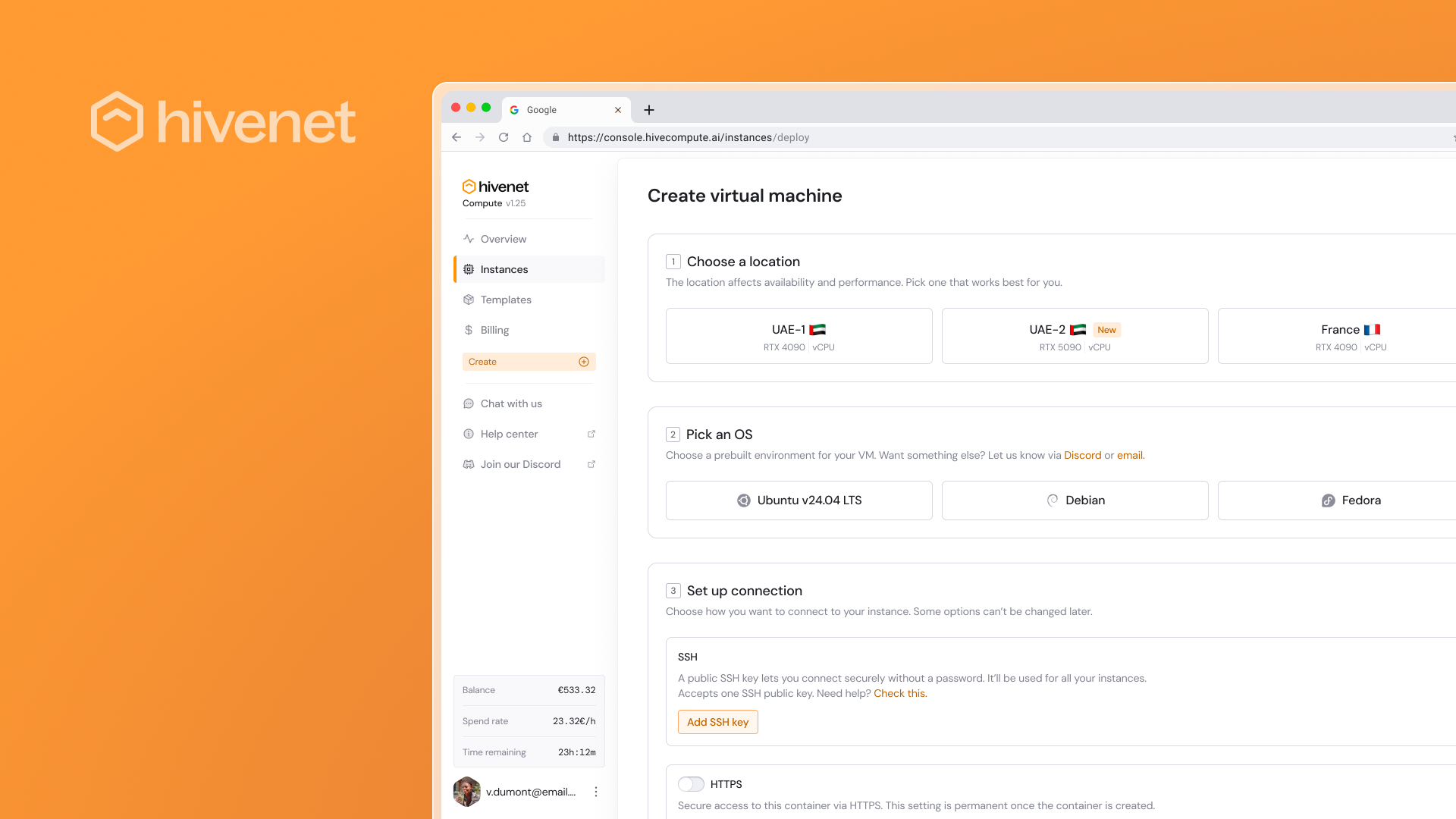
Agora você pode escolher um tempo de execução diferente ao criar uma instância: uma máquina virtual (VM). Isso oferece um servidor Linux completo quando você precisar de um, sem alterar a forma como você escolhe hardware, regiões ou conectividade no console.
Por que adicionamos VMs
Alguns fluxos de trabalho não se encaixam perfeitamente em um contêiner. As pessoas fazem isso quando precisam de ferramentas no nível do sistema, serviços que esperam um comportamento de “servidor real” ou controle total sobre o sistema operacional.
As máquinas virtuais são criadas para isso. Eles são a escolha certa quando você precisa de acesso ao sudo, instalações de pacotes no nível do sistema operacional ou uma configuração mais profunda do sistema.
Quando usar uma VM versus um contêiner
Se não tiver certeza, comece com um contêiner. Geralmente, é a maneira mais rápida de realizar o trabalho.
Escolha um contêiner quando quiser um tempo de execução gerenciado para scripts, aplicativos e cargas de trabalho de modelo padrão e não quiser gerenciar o sistema operacional.
Escolha uma VM quando precisar de controle total do sistema operacional. Isso inclui sudo, serviços do sistema, gerenciadores de pacotes do sistema operacional e cargas de trabalho que pressupõem um servidor Linux tradicional.
Saiba mais sobre as diferenças entre VMs e contêineres
O que está incluído na primeira versão da VM
Você verá VMs no mesmo fluxo de “Criar” que você já usa:
- Você escolhe se está lançando um contêiner ou uma máquina virtual.
- Você escolhe um local e uma configuração (GPU ou vCPU).
- Para contêineres, você escolhe um modelo. Para VMs, você escolhe uma imagem do sistema operacional (distribuições Linux padrão).
- Você configura a conectividade, incluindo o acesso SSH. Você também pode ativar portas HTTPS, TCP ou UDP quando sua carga de trabalho precisar delas.
Como lançar sua primeira VM
- Faça login no Compute e abra o console.
- Clique em Criar.
- Selecione Máquina virtual.
- Escolha um local e a configuração de hardware que você deseja.
- Escolha um sistema operacional.
- Adicione sua chave pública SSH em Conectividade.
- Crie a VM, espere que ela chegue em Running e copie o comando SSH da página da instância para se conectar.
O que permanece o mesmo
Você ainda gerencia tudo na mesma página de Instâncias.
Você ainda pode interromper uma instância quando não a estiver usando e pagar somente enquanto ela estiver em execução. As instâncias interrompidas não são mantidas para sempre, portanto, trate a “parada” como uma pausa, não como um armazenamento de longo prazo.
Experimente o Compute hoje
Abra o console, clique em Criar, escolha Máquina virtual e inicie um servidor Linux com o hardware necessário. Comece aos poucos, prove a configuração e aumente a escala quando estiver fazendo um trabalho real.